OptimAI Claw: Launching Your First Native AI Agent in Seconds

OptimAI Claw introduces a new paradigm in personal AI: native agents that live directly inside your node environment.
No external setup. No fragmented tooling. Just a persistent agent that can research, execute, and learn on your behalf.
This guide walks through how to get started with OptimAI Claw inside your Core Node and begin running real workflows in seconds.
Step 0: Install or Update OptimAI Core Node v2
Before getting started, ensure you are running the latest OptimAI Core Node v2, now available on both Windows and macOS:
👉 https://optimai.network/optimai-nodes#nodes
If you already have OptimAI Nodes installed, no action is required -
your node will automatically update to the latest version.
This version introduces OptimAI Claw, enabling native personal agents directly inside your node environment.
Step 1: Open OptimAI Nodes
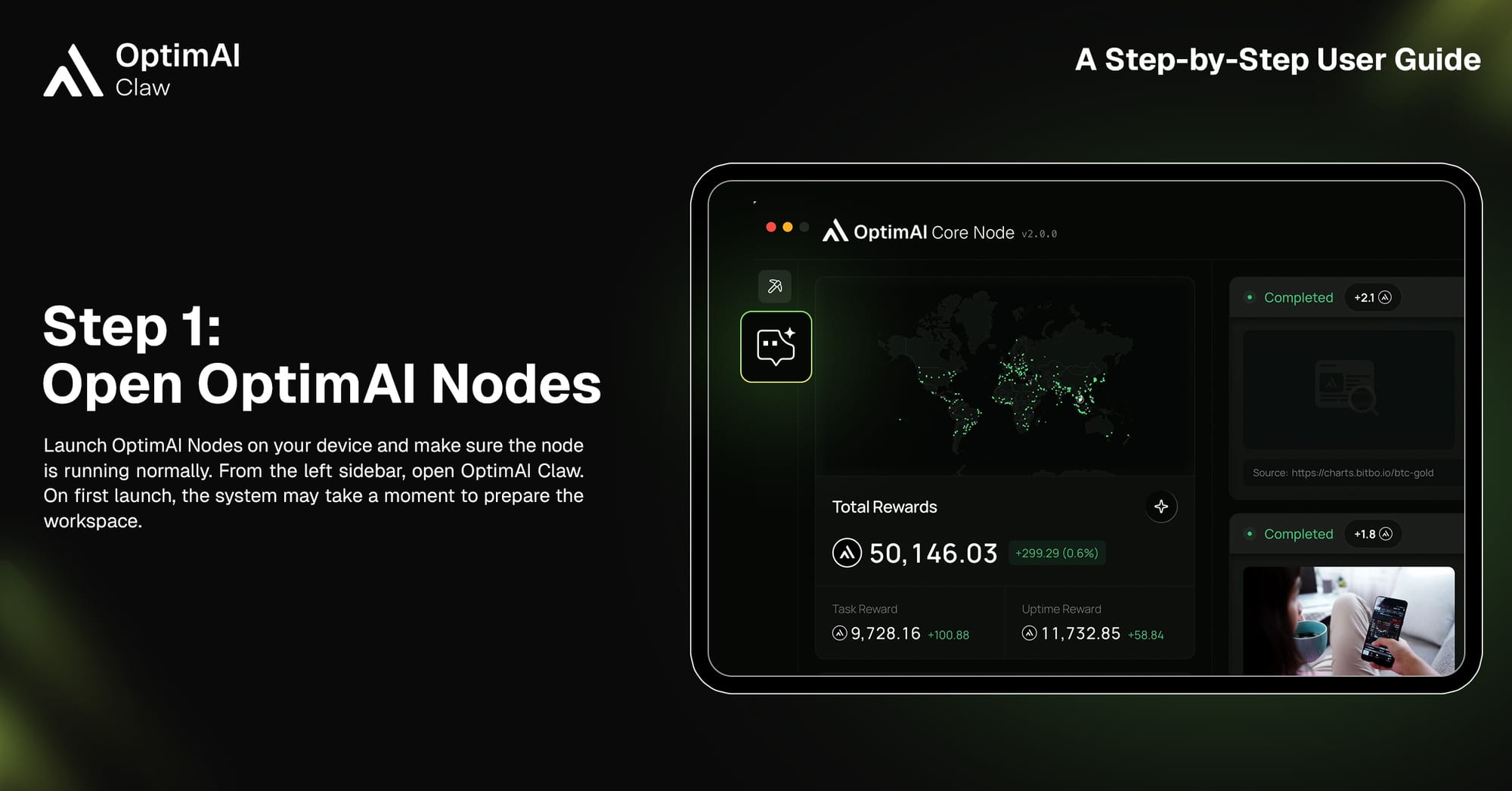
Start by launching your OptimAI Core Node on your device (Windows or macOS).
Ensure your node is running normally.
From the left sidebar, open OptimAI Claw.
On first launch, the system may take a few moments to initialize your workspace. This is expected — the agent runtime is being prepared locally on your device.
Step 2: Set Up Your Browser Profile
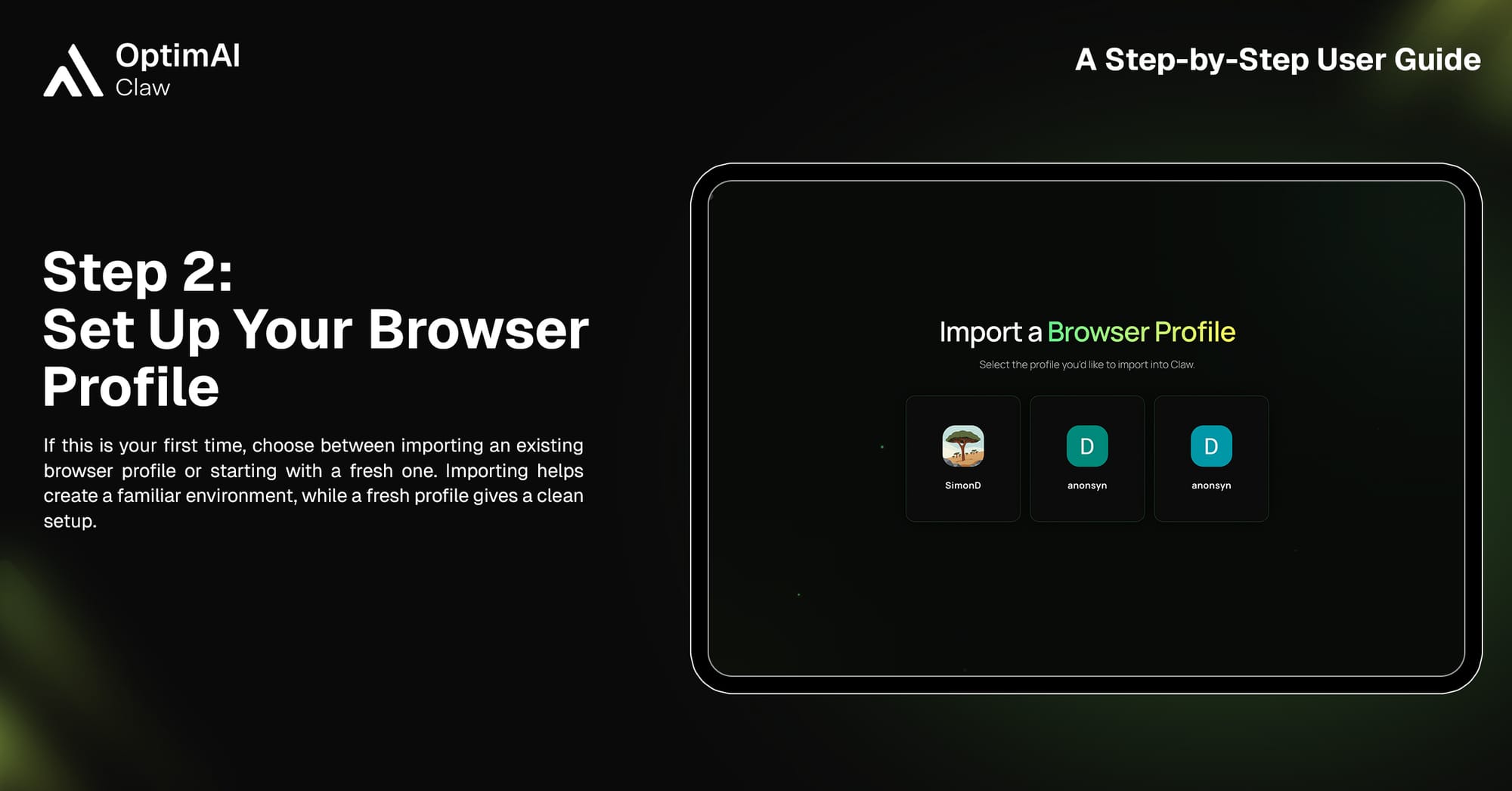
OptimAI Claw operates within a browser-native execution environment, allowing it to interact with real websites and workflows.You’ll be prompted to either:
- Import an existing browser profile (recommended for continuity), or
- Start with a fresh profile (clean, isolated environment)
Importing a profile enables Claw to operate with your familiar setup, including sessions and preferences.
Step 3: Understand the Interface
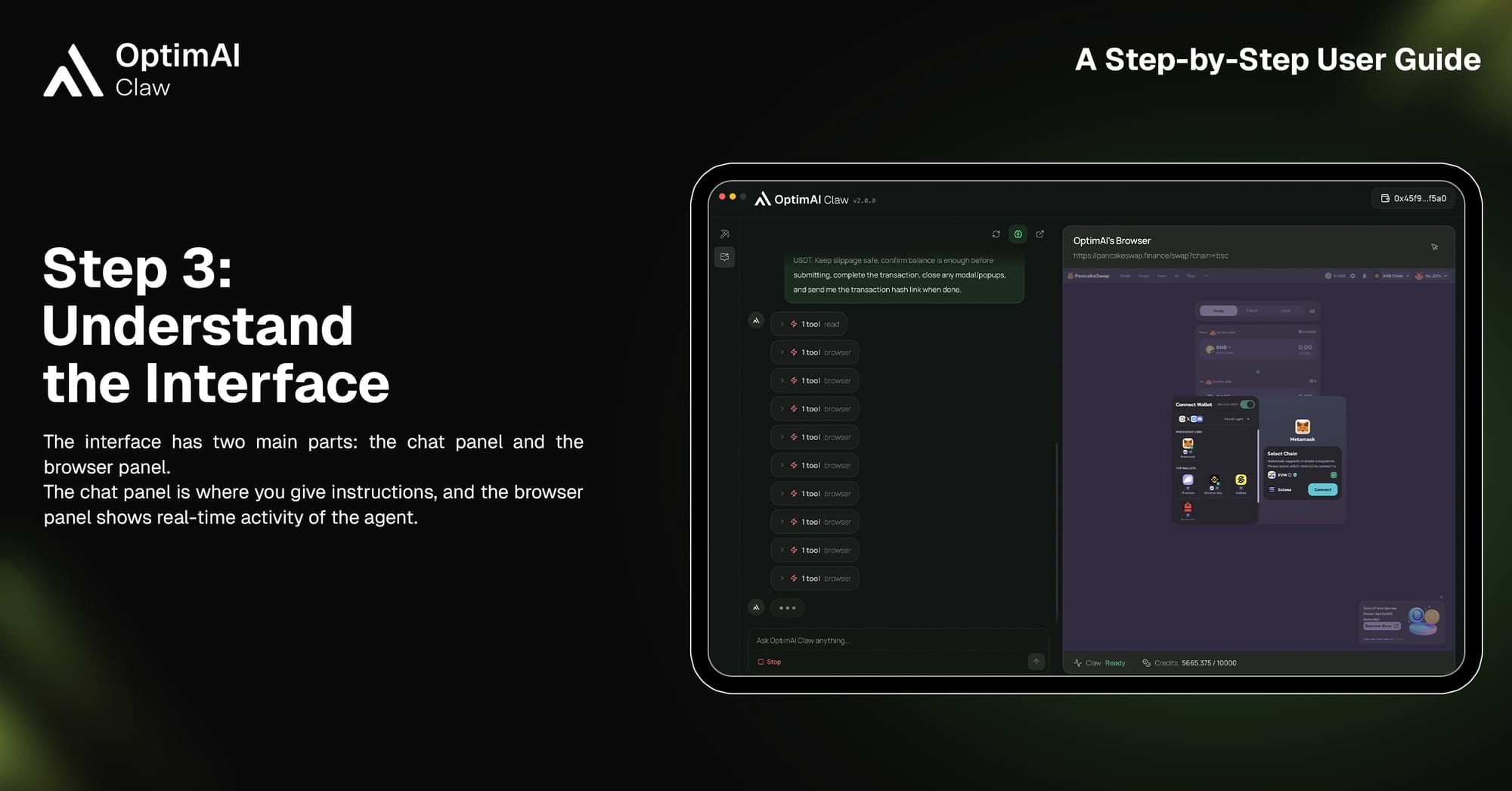
OptimAI Claw is designed around a dual-panel system:
- Chat Panel (left):
Where you define tasks, give instructions, and guide the agent. - Browser Panel (right):
A live execution environment where you can observe Claw browsing, clicking, extracting data, and completing tasks in real time.
This architecture ensures full transparency and control over agent actions.
Step 4: Start With a Clear Prompt
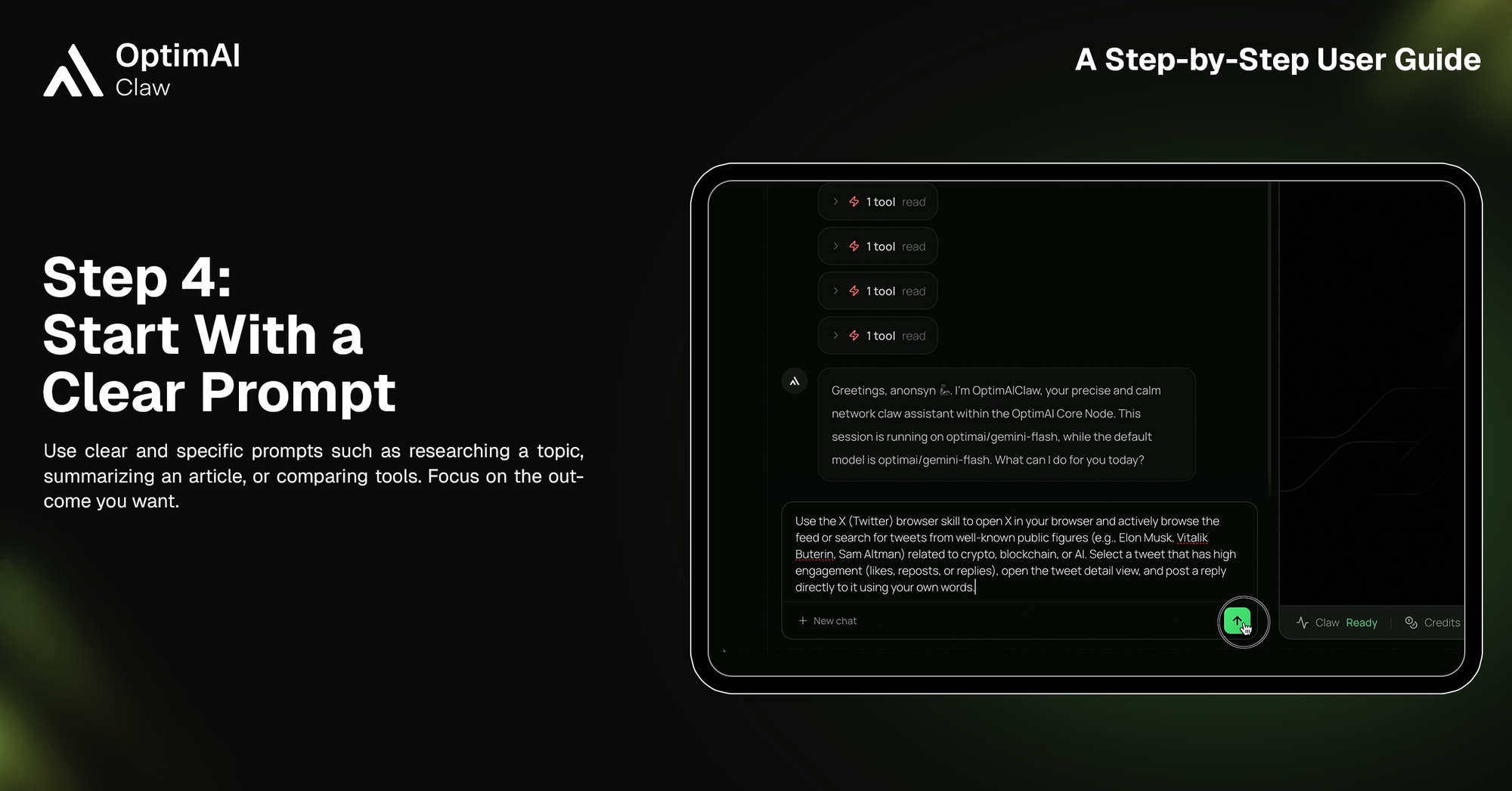
Claw operates best with clear, outcome-oriented instructions.Instead of vague prompts, define:
- The objective
- The context
- The expected output
Examples:
- “Find trending AI projects on X and summarize key insights”
- “Compare top GPU cloud providers and recommend the best option”
- “Research recent developments in DePIN and create a short summary”
The clearer the intent, the more efficiently Claw executes.
Step 5: Let Claw Browse and Execute
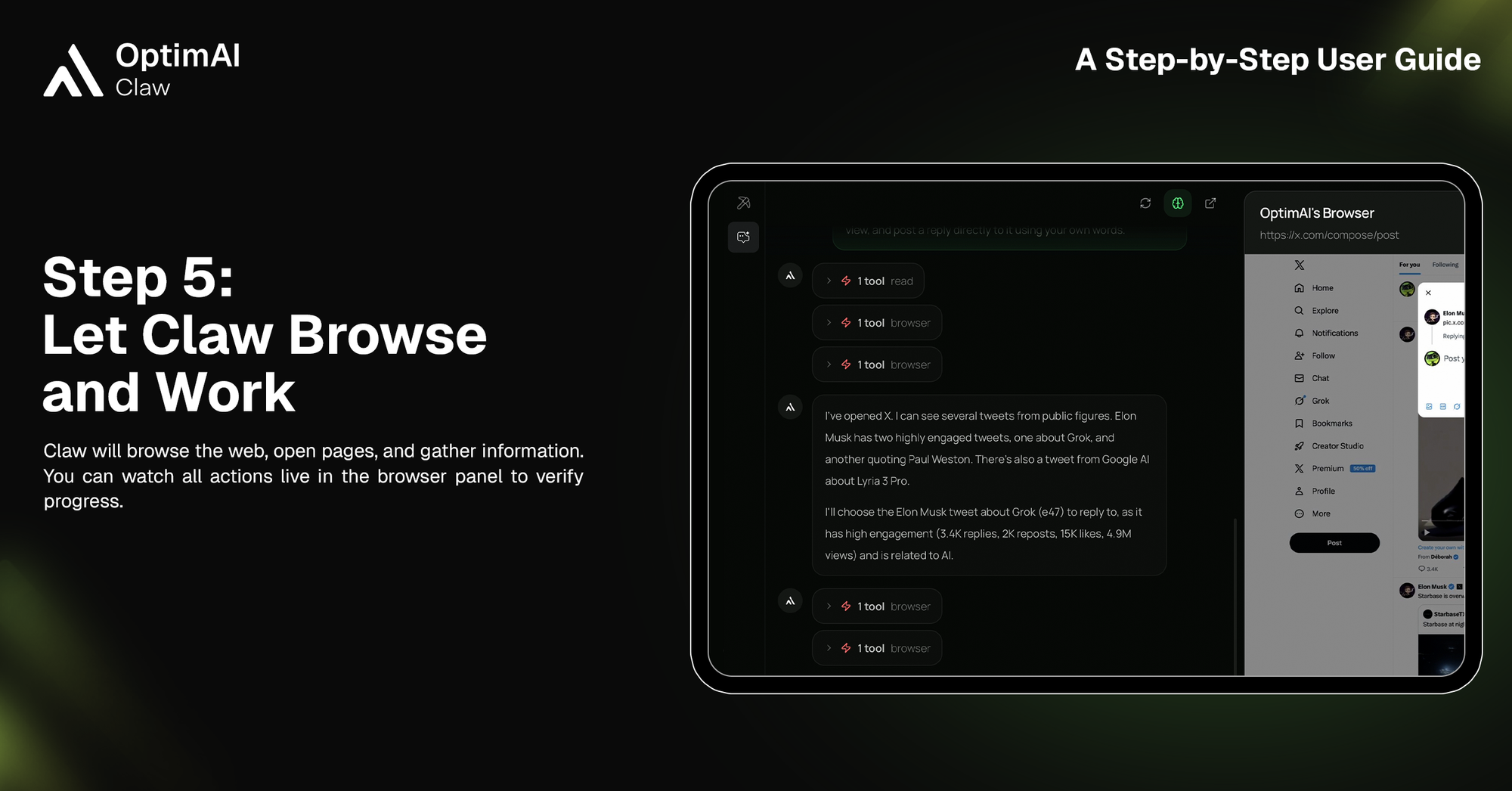
Once prompted, Claw begins operating autonomously:
- Opening relevant websites
- Navigating across sources
- Extracting and structuring information
- Executing multi-step workflows
You can monitor all actions live in the browser panel.This is where OptimAI Claw moves beyond static AI — into real execution in live environments.
Step 6: Use Interact Mode When Needed
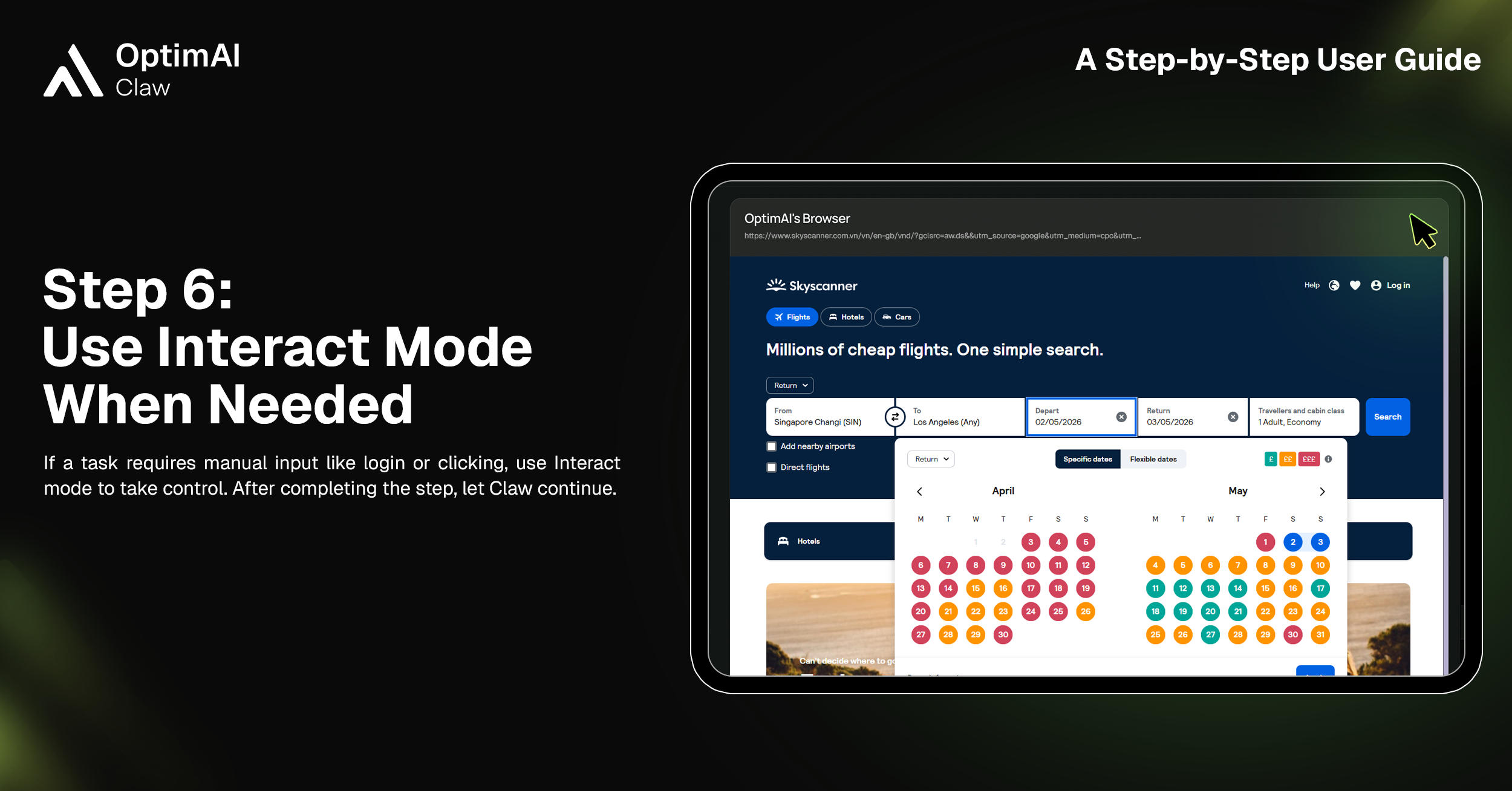
In case you start with a fresh browser profile, some tasks require human input, such as:
- Logging into accounts
- Completing CAPTCHA
- Confirming transactions
In these cases, switch to Interact Mode:
- Take control temporarily
- Complete the required step
- Then return control to Claw
This creates a seamless human–agent collaboration loop.
Step 7: Manage Sessions Efficiently
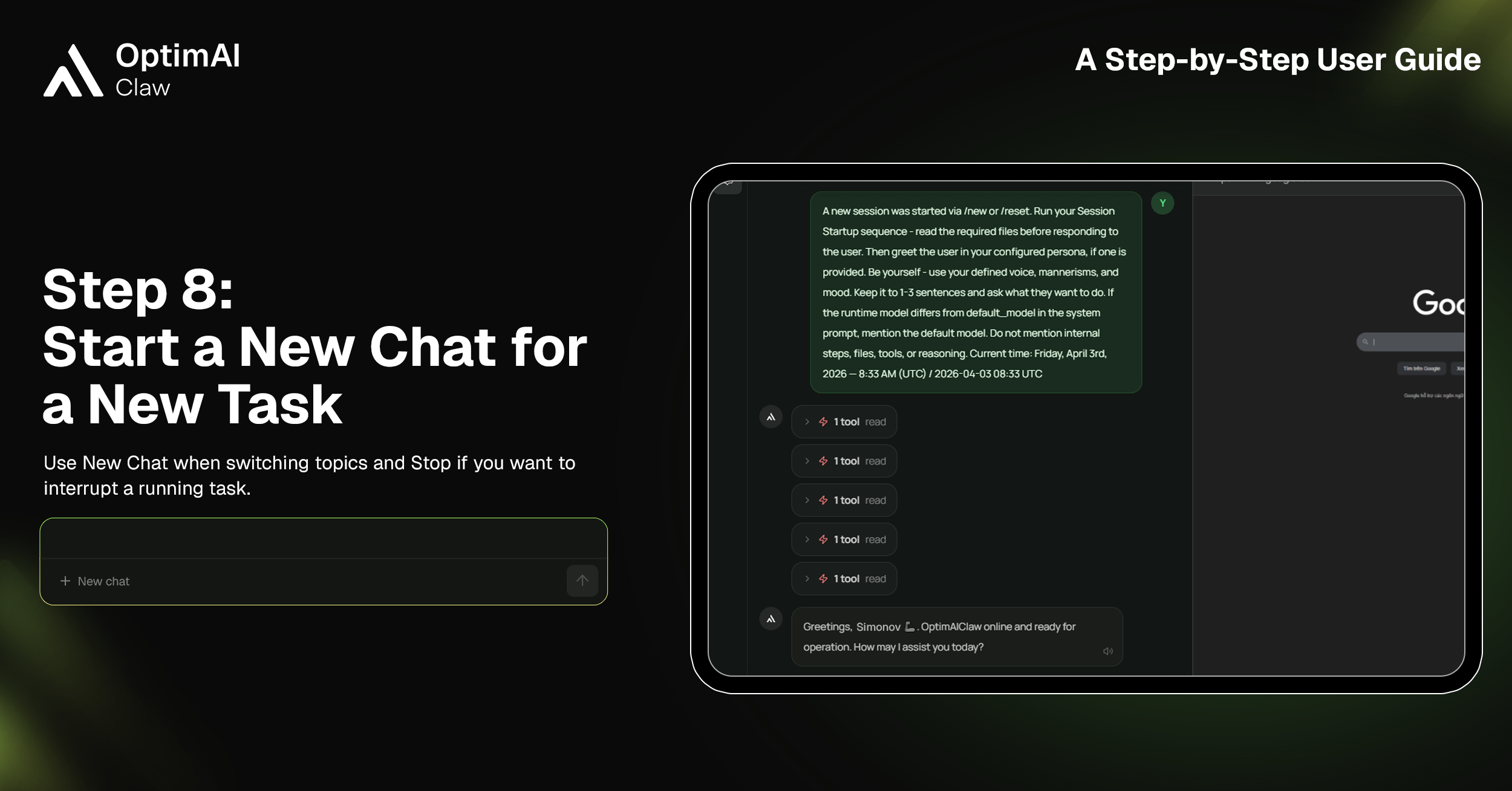
When switching tasks, it’s recommended to:
- Start a New Chat for a new objective
- Use Stop to interrupt ongoing tasks
This keeps execution clean and prevents context overlap between workflows.
Step 8: Extend Capabilities with Agent Skills
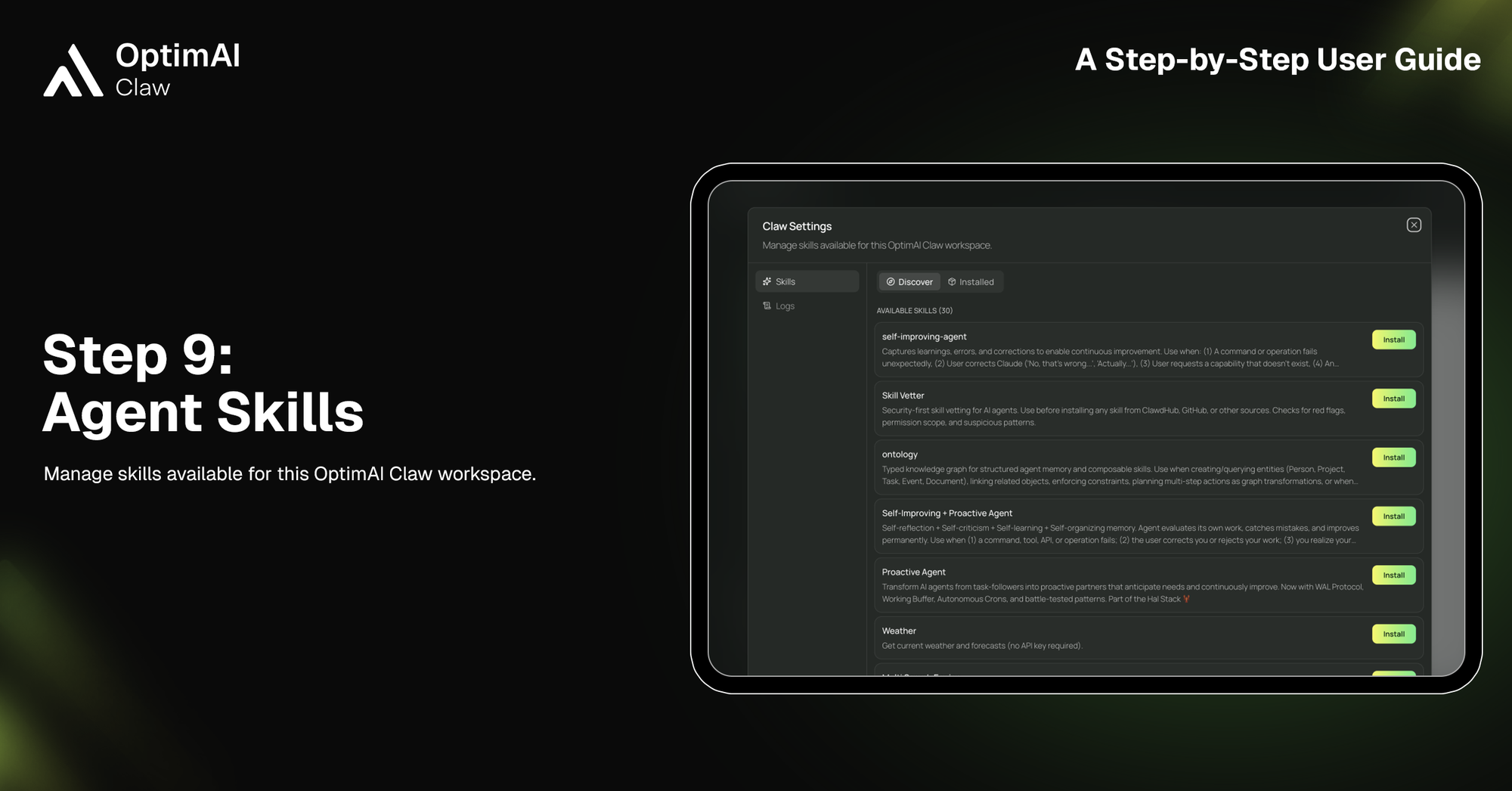
OptimAI Claw supports modular Agent Skills, enabling expanded functionality.Within Claw Settings, you can:
- Browse available skills
- Install new capabilities
- Customize how your agent operates
Examples include:
- Structured memory systems
- Self-improving agents
- Proactive task execution
- Domain-specific utilities
This transforms Claw from a single agent into a programmable execution layer.
What This Enables
With OptimAI Claw, your node is no longer just infrastructure.It becomes:
- A persistent personal agent runtime
- A system capable of real-world task execution
- A participant in a network of continuously learning agents
This is the foundation of agent-native computing, where intelligence doesn’t just respond -- it operates.
OptimAI Claw represents a shift from:
- Prompt-based interaction → autonomous execution
- Isolated tools → integrated agent environments
- Static AI → continuously learning systems
And it all starts directly from your node.